
Your email marketing success or failure can come down to many little details. One of those details is having a simple, professional, branded email signature for each sales person at the bottom of each message.
I was recently spinning up a new marketing automation platform for a client and here are some tips.
1. Start with a good free HTML email signature generator
There may be an HTML email signature generator provided by your email marketing or marketing automation platform, so use that if there’s one available. I’m currently using Salesforce Account Engagement (formerly known as Pardot — I will refer to it as Pardot for the remainder of this post). Sadly, Pardot does not have an HTML signature generator, so I just googled “free HTML signature generator” and chose one I trusted. I chose the excellent HubSpot Email Signature Template generator because I figured HubSpot is reputable and they already have my marketing information so entering my info into their tool will have zero impact on the volume of marketing messages I already get in my inbox.
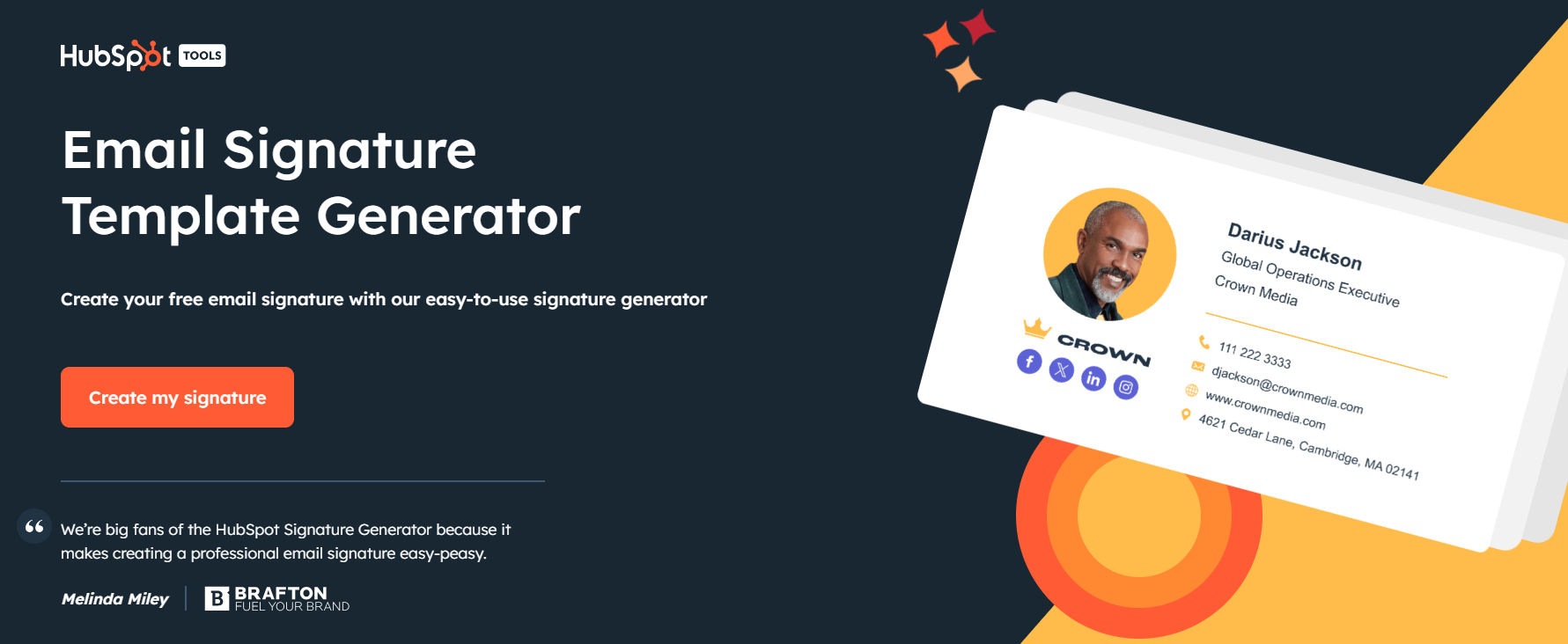
The HubSpot tool is form-based and it quickly ingests your contact details and accepts your links for graphics (head shot, company logo, etc.). It offers you several attractive layout templates to choose from. Within a few minutes it spits out your professional looking template including the code you can copy/paste into your marketing solution. HubSpot even emails you a link to the code.
2. Paste the code into your Marketing Automation solution
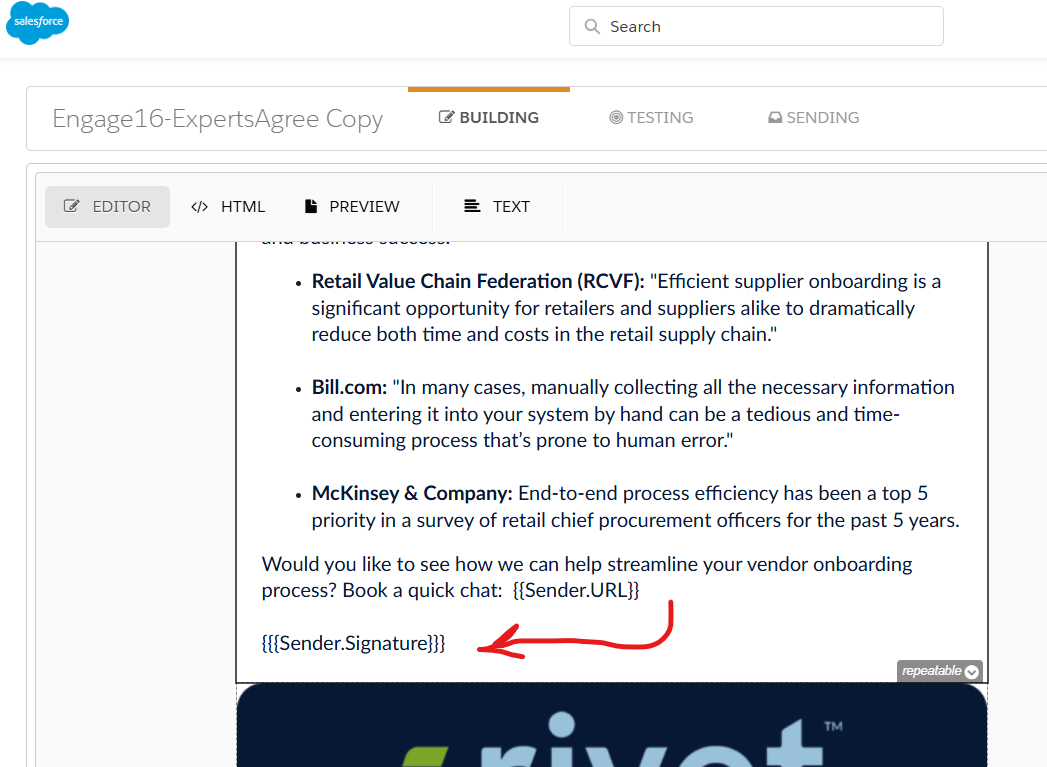
Most Marketing Automation solutions (including Pardot) let you define a signature file for each user. That way when you send emails “from” the sales team members, their email signature can be easily inserted at the end of each email as a merge field. In Pardot, under Admin / User Management, you are able to specify the signature for each user.
3. Pro Tip: clean up the HTML code
The problem with using a free HTML generator is the code it generates can be a little junky. And junky code in your emails can cause problems including poor/slow deliverability, triggering spam filters, and slow load times. Here are some examples of how I cleaned up the code:
- Add your corporate fonts to the style tags of the HTML code. Otherwise you will be stuck with some boring standard font that doesn’t match the font in the body of your email.
- The code generated by your HTML signature generator might have a visible (or hidden) advertisement from the author of the code generator. For example, the HubSpot code included a small message at the bottom of the signature that said the code was created by HubSpot. Delete that. HubSpot doesn’t need your help pushing their marketing message and it distracts from your own marketing goals.
- The little graphic icons used in the signature (phone, envelope, chainlink) are housed on the HubSpot server. So the code shows image links to a domain that is not yours. For example, the little phone icon in the email signature was pointing to
https://cdn2.hubspot.net/hubfs/53/tools/email-signature-generator/icons/phone-icon-2x.png. Upload those icons to your own marketing automation solution and edit the HTML signature code so it points to your domain. Who knows what HubSpot will do with that image, they could delete it or move it (which would create a broken image in the email signature of everyone on your sales team). They could replace the phone image with an icon of the middle finger and you probably wouldn’t notice for quite some time. It’s best to have your code pointing to a file you control on your own server. - Doublecheck that your other graphics are pointing to files uploaded to your marketing automation solution. For example, when I first started playing with the HubSpot tool I was working fast so I just grabbed the URL for my LinkedIn profile picture (
https://media.licdn.com/dms/image/v2/C4D03AQEPYJ15kPCmzQ/profile-displayphoto-shrink_400_400/profile-displayphoto-shrink_400_400/0/1516274010378?e=1744243200&v=beta&t=nttNpSii9HXy2Jq_e5z7hizmUiNkjCRLjsP1PcXFOJw). The signature rendered fine that way, but again, it was junking up the email code with another domain. So I went back and uploaded that profile picture to Pardot and replaced the URL in the email signature code. - Test it. Make sure it looks good in various email clients. One thing I discovered when I tested it was that the table spacing looked too tight in Outlook. The phone icon was mashing up against the phone number, making it hard to read. I tried building in some extra padding for the table cells, but Outlook didn’t like that, so I added some non-breaking spaces next to the icons, and now it looks fine in Outlook. Another thing I discovered was the image I used for the company logo had a transparent background and it didn’t look right on my mobile phone email because I use “dark mode.” So I swapped out the transparent company logo for one with a white background.

4. Step and repeat for each sales person
Now that you have your email signature cleaned up and looking good, copy the HTML into each sales person’s user profile and update it with their own personal contact info.


